
Most people who open Revit for the first time start clicking through the Ribbon and the Project Browser one button at a time, trying to get comfortable with the screen. Spend your whole first day that way, though, and you risk missing the one thing that makes Revit fundamentally different from a tool like AutoCAD. The real goal of Day One is not to sightsee the interface — it is to internalize the fact that Revit handles all of its data through a Category → Family → Type → Instance hierarchy. Today we will walk through the three things worth locking in on Day One: the core interface elements, project setup (template, levels, grids, units), and this hierarchy itself.
1. Why Memorizing the Revit Interface Isn’t Enough
Rather than memorizing each screen element in isolation, it sticks far better to understand why each one is built the way it is — by connecting it to the hierarchy we’ll cover later.
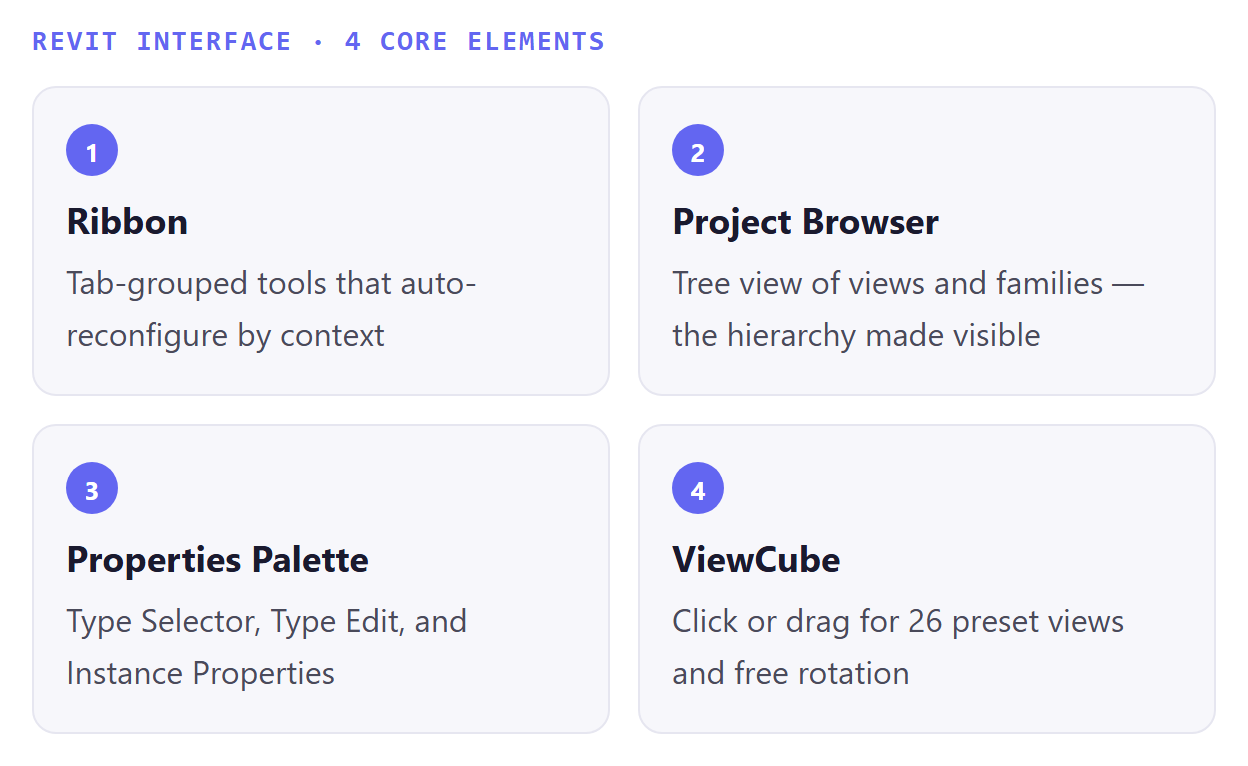
Ribbon: a toolbar that groups related commands under tabs such as Architecture, Structure, Insert, Annotate, and View. The buttons available change automatically depending on the tool you’ve selected or the type of view that’s active. If a button you had a moment ago suddenly disappears, that isn’t a bug — it’s the Ribbon reconfiguring itself to match context.
Project Browser: a virtual folder tree that shows every view, schedule, sheet, family, group, and link in the project. Expand the “Families” node here and you’ll see the exact Category → Family → Type hierarchy that Section 3 of this article covers, laid out as an actual tree. Simply expanding this tree on Day One goes a long way toward making the hierarchy feel concrete.
Properties Palette: the panel for checking and editing the parameters of a selected element, docked by default above the Project Browser on the left side of the screen. It’s made up of a Type Selector (shows and lets you change the current type), a Type Edit button (edits properties shared by every instance of that type), and Instance Properties (properties specific to the individual element). Select several elements at once and the Properties Palette shows only their shared properties — a behavior directly tied to the Type-parameter-versus-Instance-parameter distinction covered later.
ViewCube: a 3D navigation tool that appears semi-transparent in the corner of the drawing area and turns opaque when you hover over it. Clicking a face, edge, or corner instantly switches to one of 26 predefined views (front, right side, isometric, etc.), while clicking and dragging lets you rotate freely without snapping to a preset. The compass beneath it lets you check and adjust the model’s north direction.
One practical Day One tip: it’s safer to turn off the “Press and Drag” selection option in the lower right of the screen while you’re still a beginner. With it on, clicking an element can accidentally move it. Until you’re more experienced, a two-step approach — select first, then move — cuts down on mistakes.
2. Why Project Setup Determines Everything That Follows
Project setup can look like a minor, throat-clearing step before the real modeling begins, but it actually locks in the constraints for every piece of work that comes after: choosing a template determines the levels, units, and family library built into that template, and every subsequent action — a wall attaching to a level, a column aligning to a grid — is bound by those initial settings.
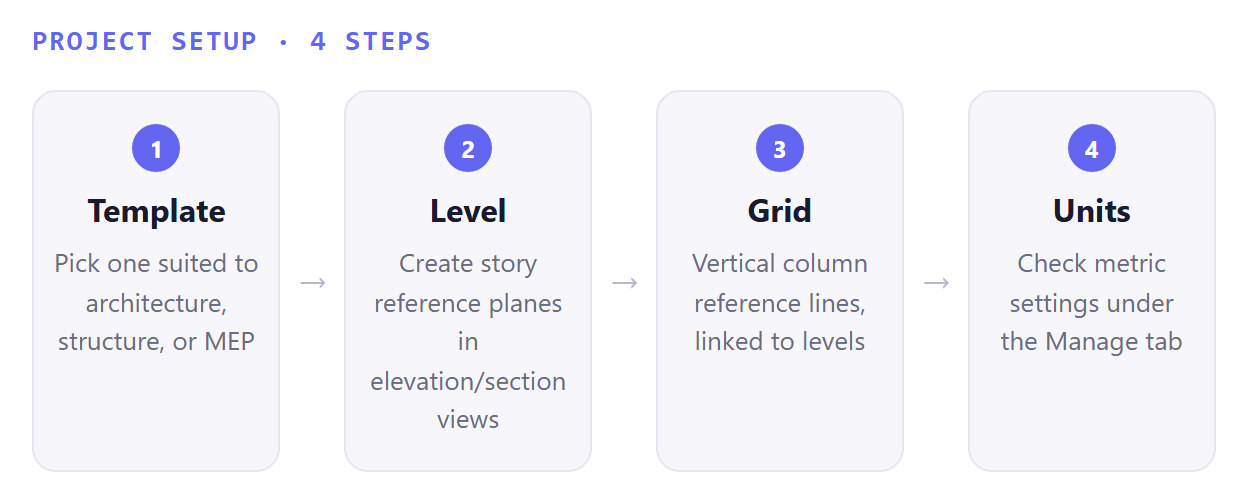
Template: every Revit project starts from a template file. Templates come preloaded with levels, views, and a handful of families such as wall styles and text styles, ranging from minimal templates with just units and a few views to extensive ones with standard levels, schedules, views, and sheets already built in. Choosing a template suited to the project — architectural, structural, MEP — preloads the essential settings and cuts down on both setup time and early mistakes. A template isn’t a blank canvas; remember that it also sets the default family library and the default units and display settings for every wall, door, and window you go on to create.
Level: a horizontal reference plane that defines each story and vertical elevation of a building. Default templates usually start with two levels, but you can add as many as you need. Levels can only be created in elevation or section views — not in plan views. You create them with the Level tool in the Datum panel of the Architecture tab, by specifying a start and end point, then clicking the elevation value to enter an exact height. Once an element like a wall is attached to a level, it moves along with that level whenever its height changes. In other words, a level isn’t just a line marking a floor — it’s a reference plane that physically constrains elements.
Grid: a set of vertical reference lines used to plan a building’s layout, especially column placement. The creation process resembles levels, but where levels are horizontal, grids display vertically and can be created in plan or 3D views. Link a grid to a level and it updates automatically whenever that level’s height changes, keeping the two in sync. On a structural project, grids are the reference element you set up right after levels.
Units: length, area, volume, and other units are set to metric or imperial in the “Project Units” dialog under the Manage tab. This is an essential setting for avoiding scale errors and guaranteeing accurate dimensions during construction. Domestic practice almost always uses metric (millimeters), but templates imported from abroad are frequently set to feet-and-inches. Making it a habit to check and, if needed, change the units in the Manage tab right after starting a project heads off dimensional errors later on.
3. Category → Family → Type → Instance: Why Does It Get Confusing?
These four levels form the backbone of Revit’s data model. You start from a Category (the top level, e.g. “Door”), move down to an individual Family (e.g. “Single-Flush Door”), then to a specific Type (e.g. an “800×2100” size), and once that type is actually placed in the project, it becomes an Instance.
Category: built into Revit and something users cannot create or edit on their own. Categories split into model categories — walls, doors, windows, structural framing, furniture, mechanical equipment — and annotation categories such as dimensions, tags, text, and grid lines. They govern high-level behavior, like how elements are classified and displayed across views and filters.
Family: below the category level, a group of elements that share common parameters, uses, and graphical representation. A family is a bundle of 2D/3D information representing a specific building component or documentation element — “Single-Flush Door” or “Rectangular Duct” are examples.
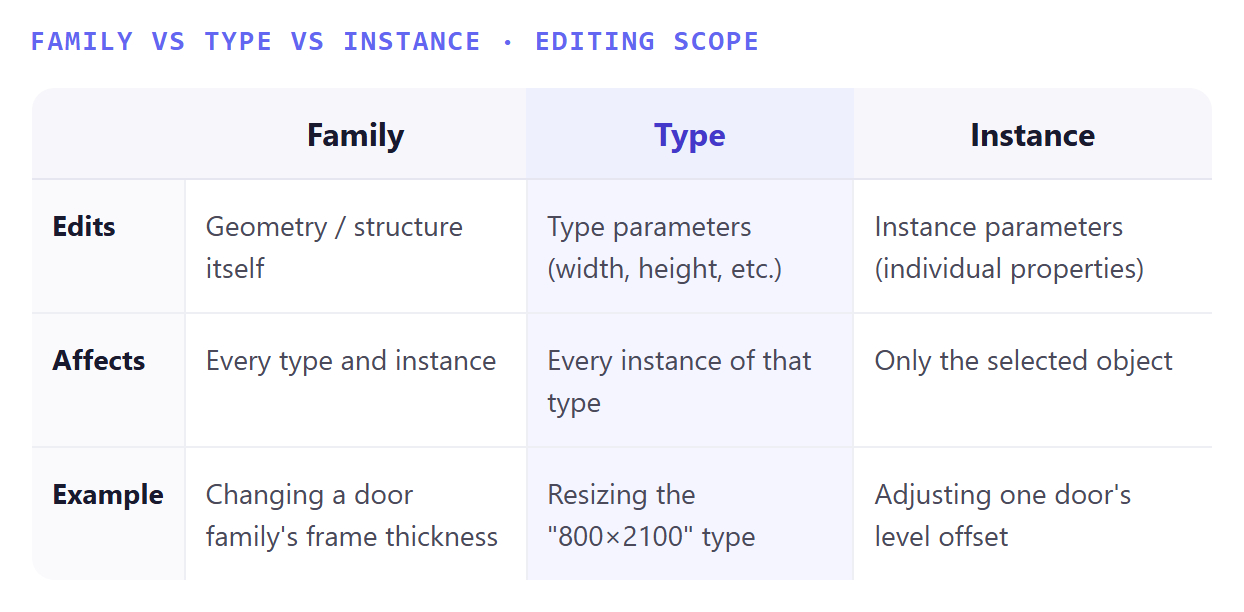
Type: a variant within the same family that carries distinct parametric, graphical, or documentation characteristics. If the “Single-Flush Door” family contains both an “800×2100” and a “1000×2300” type, those represent different size options within the same family. Edit a type parameter, and every instance built from that type changes at once.
Instance: the bottommost level of the hierarchy — an individual element actually placed in the project. Every single door you see in the 3D model is an instance. Edit an instance parameter, and only that one object changes; every other instance is unaffected.
Editing type parameters versus editing instance parameters — failing to draw a clear line between the two will keep tripping you up well past Day One.
The most common beginner mix-up: “I only meant to resize one door, but every other door of the same type changed too.” This is the classic mistake of treating a type parameter — width or height, say — as if it were an instance property.
In other words: editing the family itself affects every type and instance under it; editing a type’s properties affects only the instances built from that type (other types are untouched); and editing an instance’s properties affects only the single object you selected. If you want to change just one element, duplicate a new type first, or check in advance whether the property in question is actually an instance parameter. One useful trick: right-click a specific type in the Project Browser to select every instance of that type across the entire project at once — handy when you need to change several objects together.
Closing Thoughts
What matters on Revit Day One isn’t memorizing where the Ribbon buttons or ViewCube controls sit — it’s grasping that project setup determines the defaults for everything that follows, and that the Category → Family → Type → Instance hierarchy runs through every single operation in Revit. The distinction between type parameters and instance parameters in particular is a concept you’ll keep running into throughout this week’s curriculum, so it’s worth taking the extra time on Day One to get it exactly right — that alone will likely shape how efficiently the rest of your learning goes. Clicking through today’s concepts yourself in the Project Browser and Properties Palette should make tomorrow’s hands-on modeling a good deal smoother.